To connect to Wi-Fi by following the standard guide, the process may feel repetitive and time-consuming.
As an alternative, you can simplify the setup process by using a script.
To achieve this, first connect to the Quectel Pi board through a Type-C ADB connection.
Step 1: Prepare the Wi-Fi Setup Script
Create a script named pi_wifi_setup.sh with the following content:
#!/bin/bash

read -p "Enter WiFi SSID: " SSID
read -s -p "Enter WiFi Password: " PASSWORD
echo ""

nmcli radio wifi on

nmcli dev wifi connect "$SSID" password "$PASSWORD" ifname wlan0

if [ $? -eq 0 ]; then
    echo ""
    echo "Connected successfully to $SSID"

    ip addr show wlan0
    ip route

    ping -c 3 8.8.8.8
else
    echo ""
    echo "Connection failed"
fi
Step 2: Push the Script to the Device via ADB
Use the following command to push the script into the device:
adb push [Scrip file location] /

Example:
adb push pi_wifi_setup.sh /

Step 3: Grant Execute Permission
Run the following command to make the script executable:
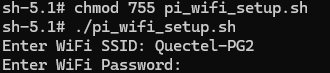
chmod 755 pi_wifi_setup.sh
Step 4: Run the Script
Execute the script using:
./pi_wifi_setup.sh
You will then be prompted to enter the Wi-Fi SSID and password.
Step 5: Verify the Connection
Once connected successfully, the script will display the network information automatically.
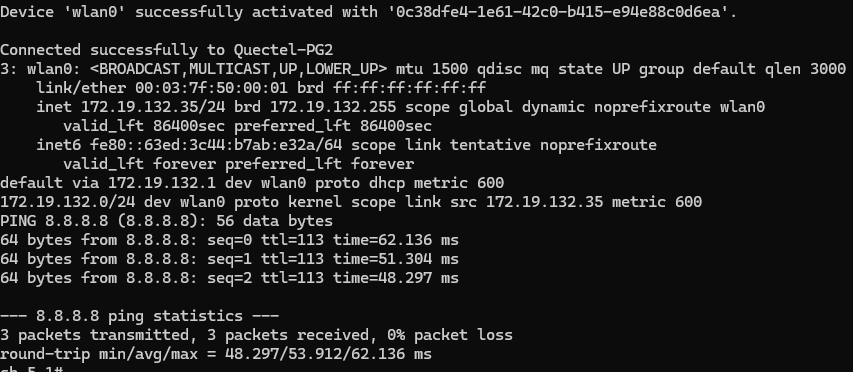
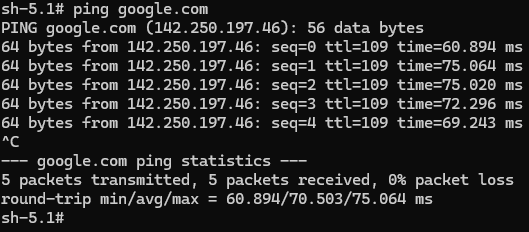
You can further verify the internet connection using:
ping google.com
Additional Useful Commands
Check IP address information:
ifconfig
or
ip address
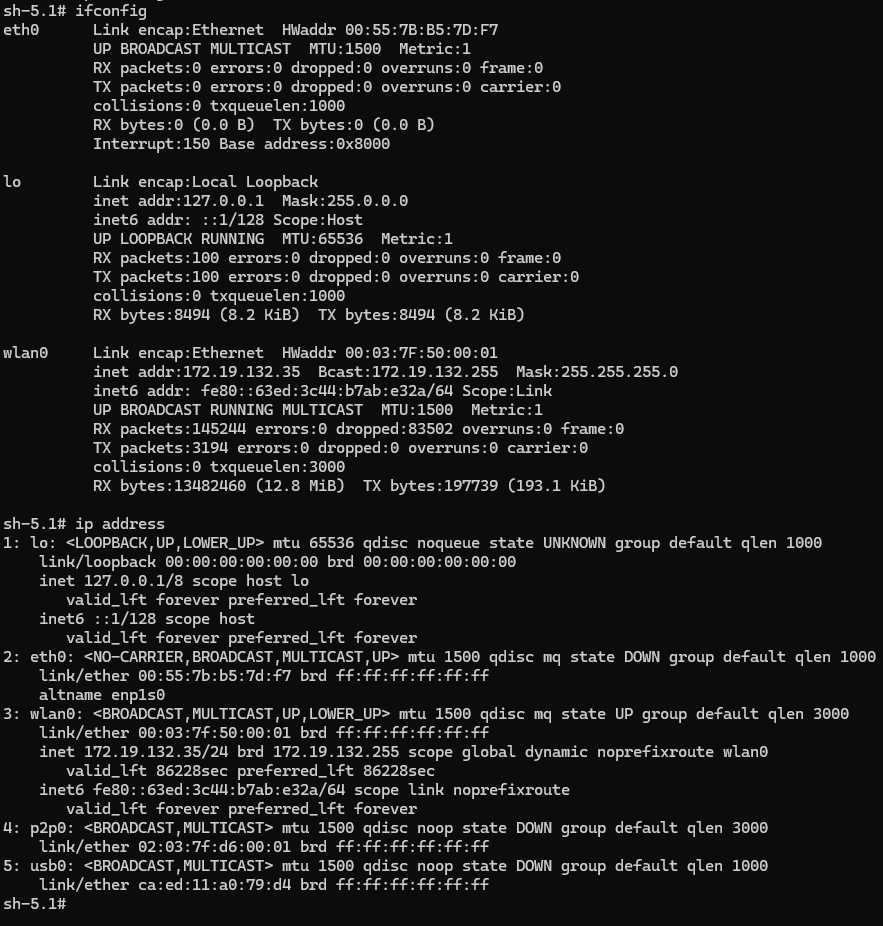
Wi-Fi should now be connected successfully.
Hope this help.
Thank you.