Overview
Android Debug Bridge (ADB) is a command-line tool that enables communication between a host computer and a target device.
ADB can be used to:
-
Access the device shell
-
Transfer files between host and device
-
Install applications
-
Collect system logs
-
Reboot the device into different modes
-
Perform development and debugging tasks
This guide introduces the basic ADB architecture, explains how to configure ADB on both the Windows host and Quectel Pi H1, and demonstrates how to verify the connection.
What is ADB?
ADB (Android Debug Bridge) follows a client-server architecture consisting of three components:
ADB Client
The ADB client runs on the host computer and sends commands to the target device.
Examples:
adb devices
adb shell
adb logcat
ADB Server
The ADB server runs in the background on the host computer and manages communication between the client and the target device.
ADB Daemon (adbd)
The ADB daemon runs on the target device and executes commands received from the host.
The communication flow is:
ADB Client
     │
     ▼
ADB Server
     │
     ▼
ADB Daemon (adbd)
     │
     ▼
Quectel Pi H1
ADB supports both:
-
USB connections
-
Network (TCP/IP) connections
Prerequisites
Before using ADB with Quectel Pi H1, ensure the following:
-
Quectel Pi H1 is powered on
-
USB debugging is enabled
-
USB cable is connected
-
ADB drivers are installed on the Windows host
-
Android SDK Platform Tools are installed
Step 1: Configure ADB on Quectel Pi H1
Refer to the official Quectel Pi H1 documentation:
Remote Access → ADB
https://developer.quectel.com/doc/sbc/Quectel-Pi-H1/en/User-Guide/Remote-Access/adb.html
The guide explains:
-
Enabling Developer Options
-
Enabling USB Debugging
-
Verifying ADB availability
Once USB debugging is enabled, connect the device to the host PC using a USB cable.
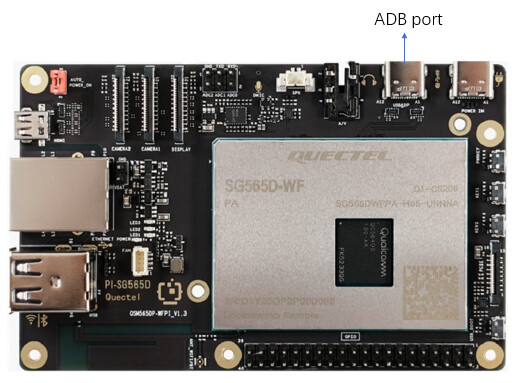
Step 2: Install ADB Driver on Windows
After connecting the device:
Open:
Device Manager
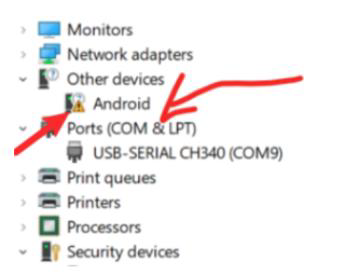
If the ADB driver is already installed, an ADB interface should be visible.
If the device appears as an unknown Android device:
-
Right-click the device
-
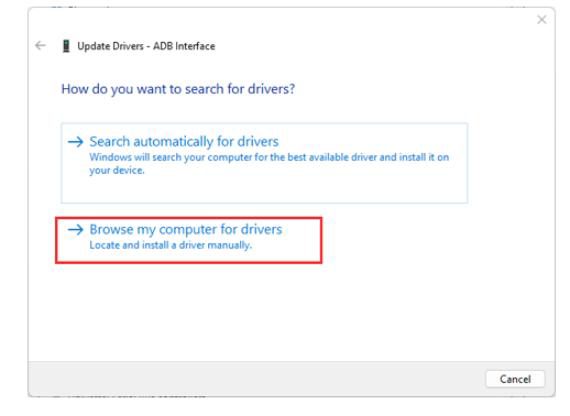
Select Update Driver
-
Select Browse my computer for drivers
-
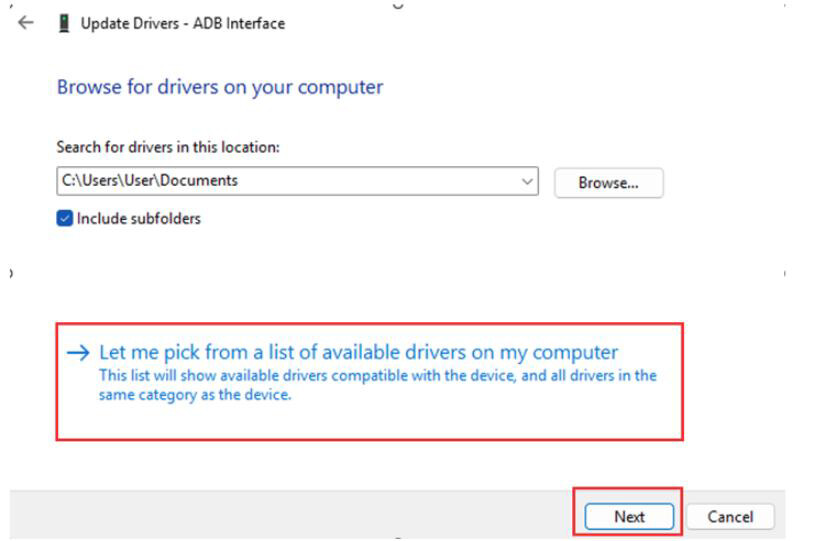
Select Let me pick from a list of available drivers
-
Uncheck Show compatible hardware
-
Select:
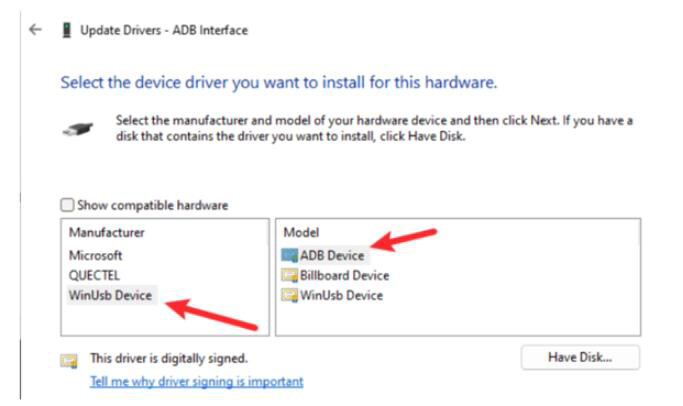
WinUSB Device
    └─ ADB Device
- Complete the installation
After successful installation, the device should appear as:
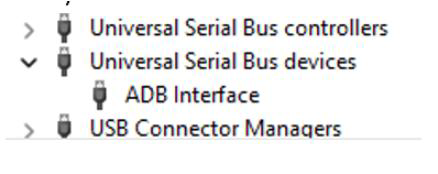
ADB Interface
inside Device Manager.
Step 3: Install Android SDK Platform Tools
Download the latest Platform Tools package from:
https://developer.android.com/tools/releases/platform-tools
Extract the package to a convenient location such as:
C:\platform-tools
Step 4: Add ADB to the Windows PATH
Adding Platform Tools to the PATH allows ADB commands to be executed from any Command Prompt window.
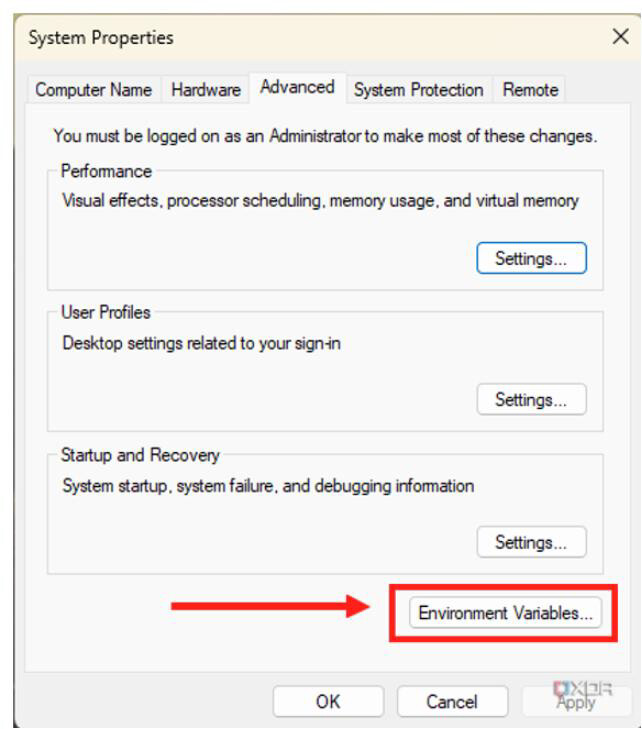
Navigate to:
System Properties
    └─ Advanced System Settings
          └─ Environment Variables
Under:
System Variables
Edit:
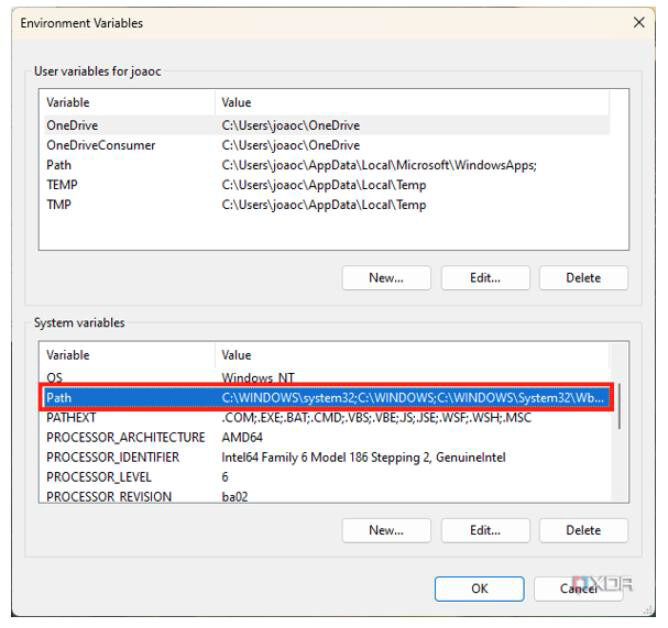
Path
Add:
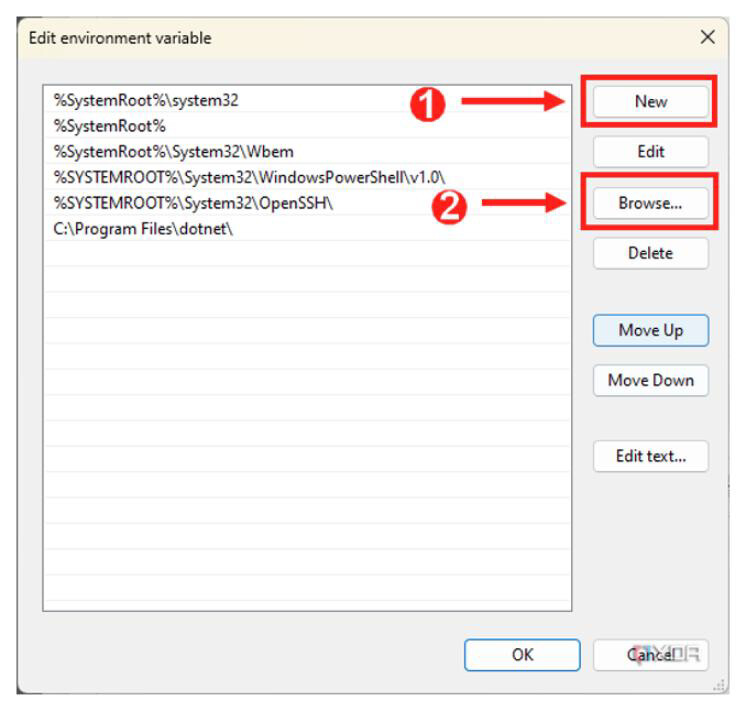
C:\platform-tools
Save the configuration and reopen Command Prompt.
Verify installation:
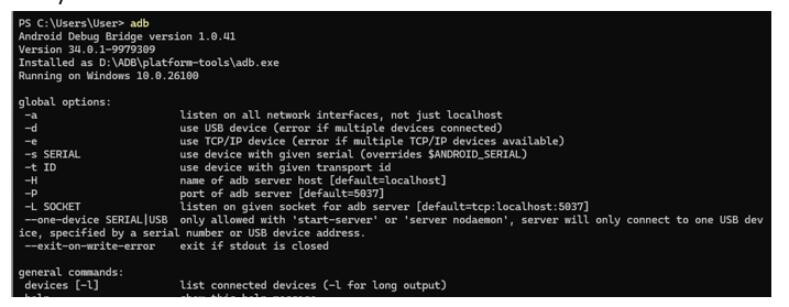
adb version
If the version information is displayed, the installation is successful.
Step 5: Verify Device Detection
Open Command Prompt and execute:
adb devices
Example output:
List of devices attached
1234567890ABCDEF    device
If the device appears in the list, the connection has been established successfully.
Common First-Time Authorization Prompt
The first time ADB connects to the device, a prompt similar to the following will appear on Quectel Pi H1:
Allow USB debugging?
Select:
Allow
to authorize the host computer.
Running:
adb devices
again should now show:
device
instead of:
unauthorized
Useful ADB Commands
Verify Connected Devices
adb devices
Open Device Shell
adb shell
Reboot Device
adb reboot
Reboot into Fastboot Mode
adb reboot bootloader
Reboot into EDL Mode
adb reboot edl
Transfer Files to Device
adb push test.txt /sdcard/
Retrieve Files from Device
adb pull /sdcard/test.txt ./
Capture Android Logs
adb logcat
Generate Bug Report
adb bugreport
Troubleshooting
Device Not Detected
Verify:
adb devices
If no device appears:
-
Check USB cable connection
-
Verify USB debugging is enabled
-
Confirm ADB driver installation
-
Restart the ADB service
adb kill-server
adb start-server
Device Shows “Unauthorized”
If the output shows:
unauthorized
Check the Quectel Pi H1 display and approve the USB debugging authorization prompt.
Insufficient Permissions on Linux
Linux users may encounter:
error: insufficient permissions for device
Refer to the Linux ADB permissions guide for configuring the required udev rules.
Conclusion
ADB is one of the most important tools for developing and debugging applications on Quectel Pi H1. By correctly configuring both the host PC and the target device, developers can quickly access the system, transfer files, collect logs, and perform advanced debugging tasks.
Once ADB is configured successfully, users can leverage additional tools such as Fastboot, Logcat, Dumpsys, Activity Manager (AM), and Package Manager (PM) to further streamline development and troubleshooting workflows.